Avizo Scripts
For a few of the modules in this package (FIBbootstrap.skeleton and
FIBbootstrap.surface) the bootstrapping code requires the output
of a couple other scripts available in another repository
(and included as a submodule of this one).
Note
FIBbootstrap.tortuosity requires the output of the
FIBTortuosity module;
FIBbootstrap.tpb requires the output from the TPB calculation
script.
The Avizo scripts are a little less organized than the rest of the repository, and are provided on a “hope this works for you” basis. They should be usable, and at the least can hopefully be used as a starting point for tailoring your own scripts. They are located in the subsample folder.
Skeleton calculations
The script that does the “heavy lifting” is sub_skel_stats.scro.
It also requires the customAutoSkeleton.scro script.
These scripts have to be loaded by using the corresponding .rc files of the same
name. Put both the .rc and .scro files (or links to them) into
the share/script-objects folder of the Avizo installation, which
will enable them in Avizo as custom modules. After restarting Avizo,
the Subvolume Skeleton Stats module should be available by right-clicking
on a LabelField object in Avizo.
To use the script (for SOFC data like mine), load a LabelField containing the Pore, cathode, and electrolyte as the first three labels. The fourth field can have the bulk electrolyte, but it won’t be used. If you want to use the script for more than three phases, it will have to be altered. Right click on the loaded LabelField and create a new Subvolume Skeleton Stats module. It should create a couple OrthoSlices and a subvolume box, like shown:
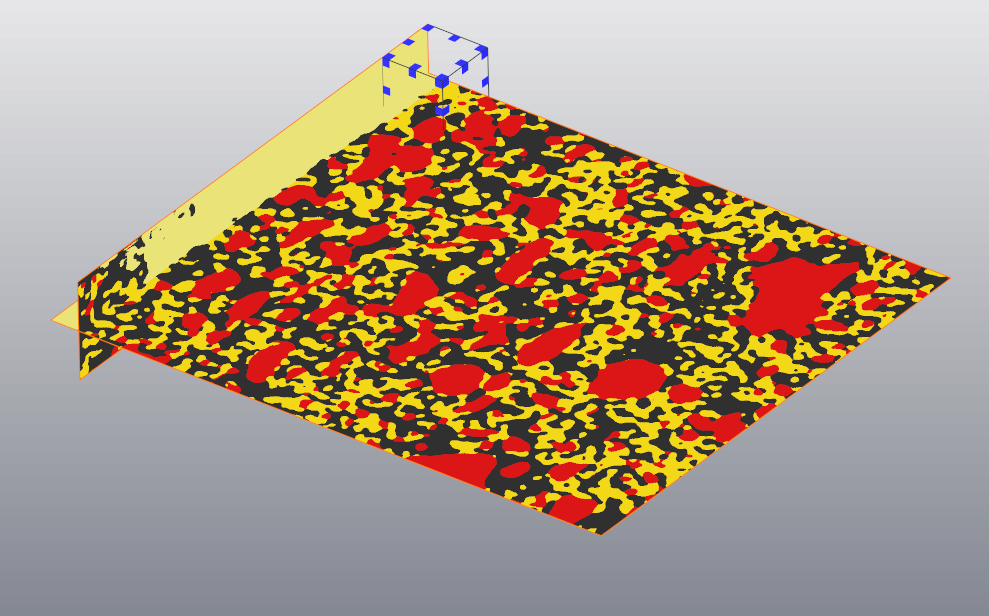
The parameters of the subvolume analysis can be tailored in the Properties box of the module. The number of subvolumes (and their size) can be selected. The Electrolyte offset parameter should be set to prevent the the subvolume box from containing any of the bulk electrolyte. Turning off the Visualize option might speed calculation a little. Checking the Simulate box will show how the the subvolumes will be randomly selected, but not actually do any calculations (useful for showing that the randomness is like you expect). Finally, the output directory can be selected (although a default is provided).
Clicking Apply will start the calculation (can take some time if many volumes
were desired). After it completes, there will be a number of *.mv3d and
*.csv files in the output folder. These files are skeleton models of the
subsampled data, and their statistics, respectively. These are the results
that are expected as inputs to the bootstrap_skel_stats
method.
Batch options
Included in the same folder are a few files that will show how the
modules can be used in a batch manner to do the calculation without showing
any GUI (and potentially speeding things up). The batch .scro file is very
similar to the original (but without all the visualization code). This can
be called by loading the .hx network file into Avizo. It will
start calculating immediately, using the parameter values set in the
first few lines of the file.
This can be loaded into an interactive Avizo session (and let it run), or
(more usefully) can be loaded using a shell script to run the code without
a GUI. An example Windows .bat script is provided in the folder as well,
showing how this can be done, but a bash script would work here just as
well (if you’re using Linux).
Surface calculations
The surface subvolume calculations work much the same as the skeleton ones.
Grab the scripts out of the surface subfolder of subsample,
and copy the .scro and .rc files into the script-objects folder of Avizo
as before. Load a LabelField to calculate on (the same kind as that used for the skeletons),
right-click on it and create a Subvolume Surface Stats module.
The exact same options are available for this module as for the skeleton one,
so follow the same instructions. The output for this module is a series of
.csv files with statistics about the surfaces that were created. These are
the expected input for the
process_surface_stats_lsm_ysz method.
The batch options for this script work exactly the same way as the skeleton one.